Stream Wheel for OBS
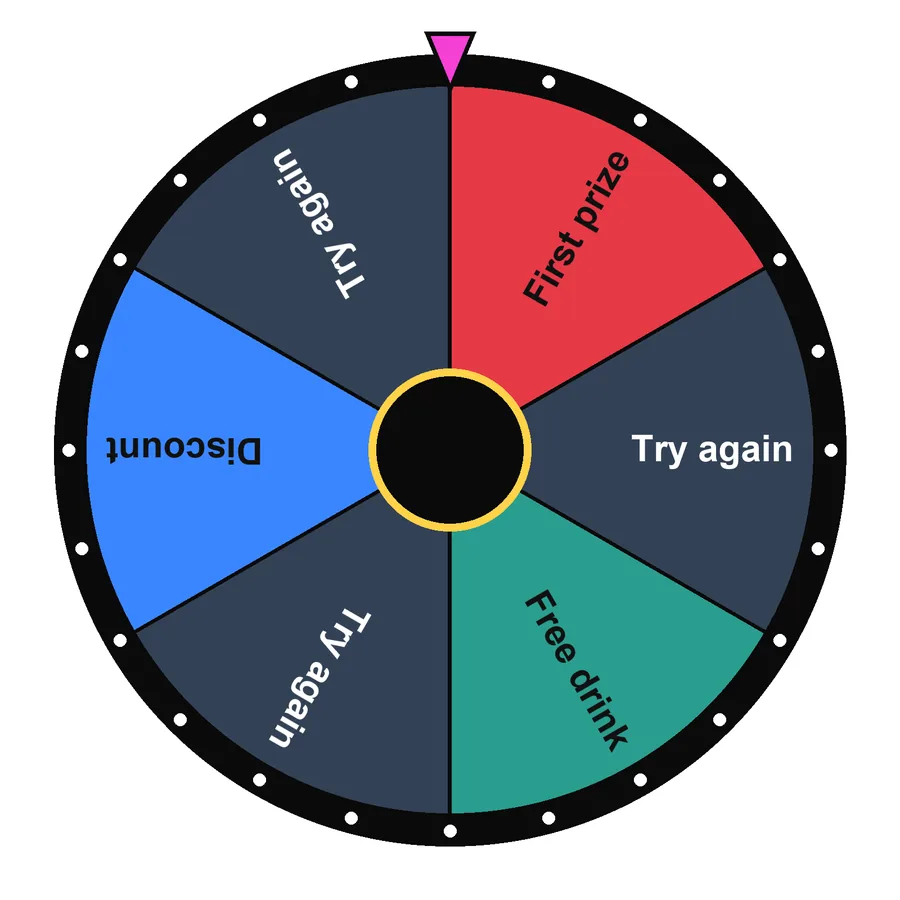
Put a fair, good-looking wheel on your stream. Use the transparent overlay in OBS or Streamlabs for chat challenges, giveaways and viewer games.
Tap the wheel, flick it, or press Ctrl + Enter
Large list: edit it in Text view.
Tip: add *3 after an entry to triple its chance, or a colour like #16A34A to colour its slice.
…This hash locks in the next result before you spin. After the spin we reveal the seed so anyone can check it.Set up the overlay

- Build your wheel above: entries, title, colours, spin time.
- Press Share and copy the link.
- In OBS or Streamlabs add a Browser source and paste the link with
?obs=1added before the#. - Size it 1080 × 1080 and place it over your scene. The background is transparent.
Stream ideas

- Challenge wheelChat earns spins; the wheel sets your next handicap.
- GiveawaysPaste usernames, publish the commitment, spin on stream.
- Just chattingLet the wheel pick the next segment.
- Subscriber goalsSpin a reward when you hit a goal.
Tips for a clean overlay

- Keep labels to 1-3 words so they read on mobile viewers’ screens.
- Use the Candy or Colour-blind safe theme for strong contrast on video.
- Turn sound on in the browser source so viewers hear the ticks.
Frequently asked questions
How do I add the wheel to OBS?
Set up your wheel here, press Share and copy the link. In OBS add a Browser source, paste the link with ?obs=1 before the # (for example /stream-wheel-obs/?obs=1#w=…), set width and height to 1080 and tick “Shutdown source when not visible”.
How do I spin during the stream?
Right-click the source → Interact, then click the wheel or press Ctrl + Enter.
Can viewers trust the result?
Show the SHA-256 commitment from Settings on screen before the spin and paste the revealed seed in chat afterwards.



Written and tested by Musa Tariq · Editorial Team · Last updated